TimeScreen Troubleshooting: 10 Fixes for Clock Display Issues
Is your TimeScreen clock not displaying correctly? Whether you're trying to set up a full-screen clock for studying, a professional time display for a presentation, or a themed clock for your streaming setup, display issues can be frustrating. A tool designed for simplicity should just work, and when it doesn’t, it disrupts your focus.
This guide is here to help. We understand that you just want a clean, reliable clock on your screen. That’s why we created a simple, stylish, and always accurate online time screen for everyone.
In this comprehensive article, we’ll walk you through 10 common TimeScreen problems and their easy solutions. From full-screen glitches to themes that won’t load, we'll help you get back to enjoying a seamless, accurate time display in minutes.
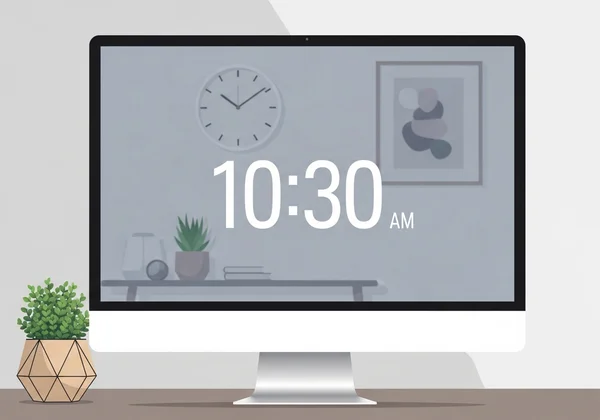
Full-Screen Clock Not Working? Try These Fixes First
One of the most popular features is our tool's ability to turn any browser into a distraction-free, full-screen clock. This is perfect for students, presenters, and anyone who needs to focus on the time. If you click the full-screen button and nothing happens, or it doesn't look right, one of these fixes will likely solve the problem.
Browser Compatibility Issues and Solutions
Different web browsers—like Chrome, Firefox, Safari, and Edge—sometimes handle full-screen requests differently. While TimeScreen is designed to work everywhere, a browser update or a specific setting might cause a conflict.
- Update Your Browser: The simplest fix is often the best. Make sure your browser is updated to the latest version. Developers constantly release patches that fix bugs related to display and full-screen functionality.
- Check Browser Permissions: Some browsers or security extensions might block websites from entering full-screen mode without your permission. Look for a small icon in the address bar when you click the full-screen button and grant permission if requested.
- Try a Different Browser: As a quick test, open TimeScreen in a different browser. If it works there, you know the issue is specific to your primary browser’s settings or extensions.
Checking Your Display Settings for Optimal Full-Screen Mode
Sometimes, the problem isn't the browser but your computer's own display settings. A misconfigured resolution or scaling setting can prevent the online clock from displaying correctly in full-screen mode.
- Review Screen Resolution: Ensure your monitor's resolution is set to its "recommended" or "native" setting. An unusual resolution can cause display artifacts or prevent the clock from filling the screen properly.
- Adjust Scaling Settings: Modern operating systems use display scaling to make text and icons larger. However, high scaling percentages (like 150% or 200%) can sometimes interfere with how web content is rendered. Try setting your scaling to 100% and see if it resolves the issue.
After trying these steps, head back to the TimeScreen.org homepage and test the full-screen feature again.
Theme Loading Problems and How to Resolve Them
TimeScreen’s beautiful themes—from the classic Flip Clock to the modern Comic style—are a core part of the experience. It’s a major letdown when your chosen theme fails to load, or you see a broken display instead of an elegant clock. Here’s how to fix theme-related issues.
Fixing Theme Loading Failures on Different Devices
A theme might look perfect on your desktop but fail to load on your tablet or phone. This usually points to a browser caching or a temporary network issue.
- Clear Your Browser Cache: Your browser stores parts of websites to load them faster next time. Sometimes, this stored data (cache) can become corrupted. Clearing your browser's cache forces it to download a fresh copy of TimeScreen, which often fixes theme loading problems.
- Disable Ad Blockers or Scripts: Aggressive ad blockers or privacy scripts can sometimes mistakenly block the files needed for our themes to display. Try temporarily disabling them for our time screen tool to see if that solves the problem.
- Check Your Internet Connection: While TimeScreen is very lightweight, a weak or unstable internet connection can interrupt the theme files from downloading completely. Make sure you have a stable connection and try refreshing the page.
When Your Custom Clock Theme Won't Display Correctly
You've spent time customizing your clock—choosing the perfect theme, setting the 24-hour format, and hiding the date. But when you revisit the site, it’s all gone. This is almost always related to how your browser handles local storage.
-
Ensure "Save Changes" is Clicked: This is the most common reason for lost settings. Our time screen tool respects your privacy by saving all settings locally on your device, not on our servers. To do this, you must click the "Save Changes" button after making any adjustments.
-
Don't Use Private or Incognito Mode: Private browsing modes are designed to forget everything when you close the window. This includes any settings you saved on TimeScreen. For your settings to persist, use a normal browsing window.
-
Check Browser Privacy Settings: Some strict privacy settings or extensions automatically clear all website data when you close the browser. Make sure your browser is configured to allow our time screen tool to save data locally.
Time Screen Visibility Issues: Making Your Clock More Visible
A clock is useless if you can't read it. Whether you're in a large conference room or just sitting far from your monitor, visibility is key. These tips will help you solve common readability and size problems with your time screen display.
Optimizing Clock Size for Projector and Large Screen Use
When projecting TimeScreen for a meeting or event, you need it to be large and clear. This ensures everyone in the room can see the time easily.
- Use Full-Screen Mode: This is the first and most important step. Entering full-screen mode removes all browser interface elements, allowing the clock to take up the maximum available space.
- Use Browser Zoom: Don’t forget about your browser's built-in zoom function! Press
Ctrland+(orCmdand+on a Mac) to make the clock larger. You can zoom in until it perfectly fits the projector screen. - Choose a High-Contrast Theme: For presentations, simple themes like Digital or LED in Dark Mode often provide the best visibility from a distance.
Contrast and Color Adjustments for Better Readability
Readability isn't just about size; it's also about contrast. If the clock numbers blend into the background, it can cause eye strain and make the time difficult to read at a glance.
-
Switch to Dark Mode: Our time screen tool offers a dedicated Dark Mode. This is perfect for low-light environments like a study room at night or a dimly lit presentation hall. It reduces glare and often makes the bright clock digits pop.
-
Select a Clear Theme: While themes like Comic are fun, they may not be the most readable from afar. For pure clarity, the Digital, LED, and Flip Clock themes offer bold, high-contrast numbers that are easy to see.
-
Adjust Your Monitor's Brightness: Sometimes, the solution is as simple as adjusting your monitor's brightness and contrast settings to better suit the ambient light in your room.

Browser Clock Settings Not Saving? Troubleshooting Tips
It’s frustrating to customize your perfect clock, only to find your settings gone the next time you visit. TimeScreen is designed to remember your preferences using your browser's local storage. If this isn't working, here’s how to troubleshoot it.
Ensuring Your Browser Saves TimeScreen Preferences
As mentioned before, TimeScreen does not use accounts or servers to store your settings. It’s all done on your computer for maximum privacy. This means your browser must be allowed to save data for the site.
- The "Save Changes" Button is Key: We can't say it enough: after you customize your theme, time format, or date display, you must click the "Save Changes" button. This is the action that tells your browser to store your preferences.
- Avoid "Clear Data on Exit" Settings: Many browsers have a privacy feature that automatically deletes cookies and site data when you close them. Check your browser's privacy settings and make sure this feature is turned off.
Fixing Issues with Local Storage on Different Browsers
Each browser has a slightly different menu for managing site data. Here’s a quick guide:
- In Google Chrome: Go to
Settings > Privacy and security > Cookies and other site data. Make sure you haven't blocked sites from saving data. - In Mozilla Firefox: Go to
Settings > Privacy & Security. Under "Cookies and Site Data," check that you aren't deleting data when Firefox is closed. - In Apple Safari: Go to
Safari > Settings > Privacy. Ensure that "Block all cookies" is not checked.
Once you’ve configured your browser correctly, you can customize your clock with confidence, knowing your settings will be there when you return.
Getting the Most Out of Your TimeScreen Display
Getting your time display working perfectly is easier than you think. With just a few simple adjustments to your browser or display settings, you can overcome most technical glitches. Keep these tips in mind: update your browser regularly, check permissions when needed, and always click 'Save Changes' to preserve your customizations.
We built our time screen tool to be a beautiful, minimalist, and private application that just works. By following this guide, you can overcome any common hurdles and get back to what matters: having an elegant and functional clock on your screen.
Ready to create your perfect clock display? Visit TimeScreen.org now and put these tips into practice.
FAQ Section
Why won't my TimeScreen go into full-screen mode on my projector?
This is usually a "second screen" issue. When your computer is connected to a projector, make sure your display mode is set to "Extend" or "Second screen only," not "Duplicate." Then, drag the browser window with TimeScreen onto the projector's screen before you click the full-screen button. This tells the browser to make the clock full-screen on the projector, not your laptop.
How do I fix blurry clock text on my high-resolution display?
Blurry text on a 4K or Retina display is often caused by browser or system-level scaling. First, try using your browser's zoom feature (Ctrl/Cmd + +) instead of system-level display scaling. Also, ensure your browser is fully updated, as newer versions have better support for high-DPI screens. If the issue persists, try a simpler theme like "Digital," which uses standard fonts that scale cleanly.
Why do my customized settings disappear after I close the browser?
This happens for one of two reasons: either you forgot to click the "Save Changes" button, or your browser is set to delete site data on exit. Our time screen tool uses local storage for privacy, so your settings are saved on your device. Always click "Save Changes" and check your browser's privacy settings to ensure it's not clearing data for our site. Using a normal browsing window, not Incognito, will also solve this.
Can I use TimeScreen on multiple devices with the same settings?
Because TimeScreen prioritizes your privacy by storing settings locally, your customizations are tied to the specific browser and device you used. They do not automatically sync across your laptop, phone, and tablet. To have the same look on multiple devices, you will need to quickly configure your preferences on each one. The good news is, with our simple interface, this only takes a few seconds! Get started at TimeScreen.org.