TimeScreen Setup Guide: Online Clock for Any Device & Display
Tired of the tiny, uninspired clock tucked away in the corner of your screen? Whether you're studying, streaming, or leading a presentation, a standard clock often fails to provide the clarity, focus, or style you need. What if you could transform any display—your laptop, a second monitor, or even a large projector screen—into a beautiful, functional time display?
With TimeScreen.org, you can do just that. This guide will walk you through every step of setting up and customizing your personal online clock. Forget about installing clunky software or worrying about privacy. We'll show you how to master the basics in seconds and unlock advanced setups for professional and creative use. Let's turn your screen into a timepiece that is simple, stylish, and always accurate. Get started by launching your new time screen.
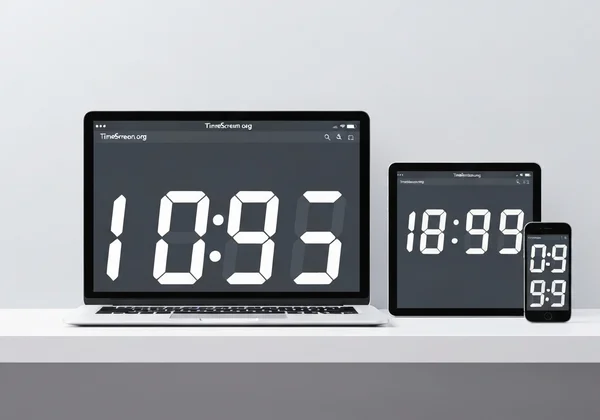
Mastering Your Initial TimeScreen Setup for Instant Focus
Getting started with TimeScreen.org is designed to be incredibly simple. The core philosophy is "screen as a clock," meaning you can have a functional and elegant time display running in under a minute. This section covers the essential first steps for anyone new to the tool.
Launching TimeScreen: Your Online Clock in Any Browser
One of the best features of TimeScreen is its accessibility. There is no software to download and no account to create. All you need is a web browser.
Simply navigate to TimeScreen.org on your computer, tablet, or smartphone. The moment the page loads, a clean, digital clock appears, ready to use. This immediate access makes it a perfect tool for when you need a clear time display without any fuss. The default theme is designed for maximum readability, giving you an instant solution right out of the box.
Going Full Screen: Maximize Your Time Display for Undisturbed Work
For deep focus sessions or dedicated time tracking, a full-screen clock is essential. It eliminates all other distractions on your screen, leaving you with nothing but the time. This is particularly useful for students like Mark, who need to manage study blocks effectively, or anyone practicing time-blocking techniques.
To activate this mode, look for the full-screen icon at the bottom of the display. A single click will expand the clock to fill your entire screen, creating a powerful, distraction-free environment. To exit, simply press the 'Esc' key on your keyboard or click the exit full-screen icon.
Quick Adjustments: Date, 12/24-Hour Format, and Dark Mode Toggle
Your time display should work for you. TimeScreen provides quick toggles for the most common adjustments right on the main screen, allowing you to tailor the clock to your needs instantly.
- Show/Hide Date: Click the calendar icon to display or hide the current date below the time.
- 12/24-Hour Format: Easily switch between AM/PM and military time formats with a single click on the "12/24h" button.
- Dark Mode: The moon icon toggles Dark Mode, which is perfect for low-light environments or reducing eye strain during late-night work sessions.
These quick settings allow you to configure the basics without ever needing to open the main settings menu.
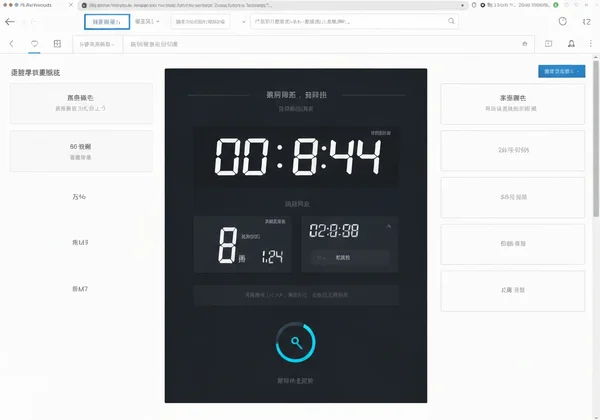
Optimizing TimeScreen for Multi-Display Environments & Professional Use
TimeScreen truly shines in complex setups. For streamers who need a clock for their audience or professionals keeping meetings on schedule, this online tool adapts seamlessly.
Seamless Dual Monitor Clock Display for Streamers & Creatives
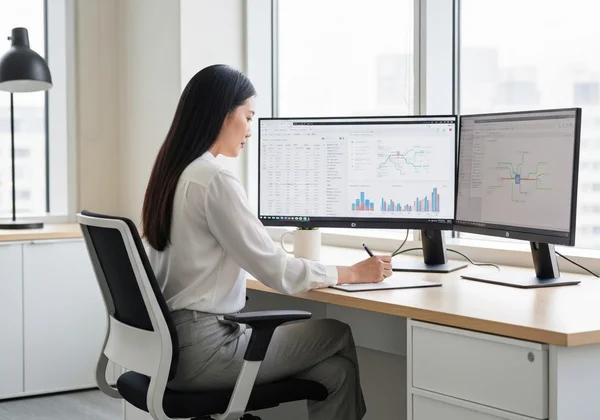
For streamers, designers, and programmers, a dual monitor setup is a common workspace. Dedicating one screen to a large, stylish clock can improve workflow and add a professional touch to your stream background. Setting up a dual monitor clock with TimeScreen is effortless.
- Open a new, clean browser window.
- Drag this new window to your second monitor.
- In that window, go to TimeScreen.org.
- Customize the theme to match your setup's aesthetic—perhaps a retro Flip Clock or a futuristic LED style.
- Click the full-screen button.
Now you have a dedicated, full-screen clock on your second display, leaving your primary screen free for your main tasks. It's a resource-light solution that avoids the privacy risks of third-party desktop apps.
Projecting TimeScreen: Clear Time for Meetings & Presentations
Meeting facilitators like Linda know that time management is key to a successful session. A small clock on a taskbar is invisible to attendees. By projecting TimeScreen onto a large screen or sharing it in a virtual meeting, you provide a clear, visible reference point for everyone.
This keeps the agenda on track and empowers speakers to manage their allocated time effectively. The minimalist design ensures the clock is helpful but not distracting. For a professional setting, the simple Digital or Analog themes in standard or dark mode work exceptionally well.
Personalizing Your TimeScreen: Unlocking Unique Themes & Settings
Beyond the quick toggles, TimeScreen offers a wealth of customization options to make the clock truly yours. The "Settings" menu is where you can fine-tune the appearance and behavior of your time display to perfectly match your style and needs.
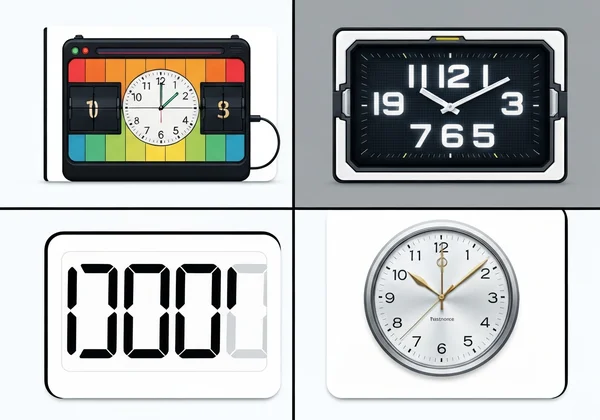
Exploring TimeScreen's Diverse Clock Themes: Flip, LED, Digital, & More
The default clock is clean and functional, but the real fun begins with the themes. TimeScreen offers a variety of styles to suit any aesthetic, from retro to modern.
- Flip Clock: A classic, retro style that mimics old-school mechanical clocks.
- LED & Matrix: Perfect for a techy, futuristic vibe.
- Comic & Simple: Fun, creative options that add personality.
- Analog: A timeless, traditional clock face for a more classic look.
Experiment with different themes to find the one that best fits your mood, your workspace, or your brand. You can try the different themes right now.
Fine-Tuning Your Display: Seconds, Background, and Visual Preferences
Inside the settings menu, you can control the finer details of your clock. Do you need to track time down to the second for an exam? There's a toggle for that. Want to change the background color to match your company's branding for a presentation? You can do that, too. These granular controls allow for a truly personalized experience, ensuring your time screen is not only functional but also perfectly integrated into its environment.
Crucial Step: How to Save Your TimeScreen Preferences Locally
This is one of the most important and user-friendly features of TimeScreen. All your settings are saved directly in your browser, not on a server. This is a privacy-first approach that means your preferences are yours alone.
However, for your changes to be saved, you must click the "Save Changes" button in the settings menu. Once you do, your browser will remember your chosen theme, format, and other preferences. The next time you visit TimeScreen.org from the same browser, your custom clock will load automatically. If you make changes and forget to save, they will be lost when you close the tab.
Ensuring Smooth Operation: Browser Compatibility & Troubleshooting Tips
TimeScreen is built on modern web technology to be as reliable and accessible as possible. Here’s what you need to know about compatibility and how to solve common issues.
TimeScreen Across Devices: Desktop, Laptop, Tablet, & Smartphone Browsers
Because TimeScreen is a web-based tool, it works on any device with a modern browser. This includes:
- Desktops & Laptops: Chrome, Firefox, Safari, Edge, and more.
- Tablets: iPad, Android tablets.
- Smartphones: iPhone, Android phones.
The responsive design ensures the clock looks great and functions perfectly no matter the screen size. You can use your tablet as a dedicated desk clock or pull up a full-screen clock on your phone during a workout.
Common Issues & Quick Fixes for Your Online Time Screen
TimeScreen is designed to be trouble-free, but here are solutions to a couple of common questions that might arise:
- My settings didn't save! This is almost always because the "Save Changes" button wasn't clicked after making adjustments in the settings menu. Always remember to save.
- The clock is showing the wrong time. TimeScreen uses your device's internal clock. If the time is incorrect, please check the time and time zone settings on your computer or mobile device.
- The display looks strange or isn't updating. This can sometimes be a browser cache issue. Try doing a hard refresh (Ctrl+Shift+R or Cmd+Shift+R) or clearing your browser's cache for the site.
Your Personalized TimeScreen Awaits: Simple, Stylish, Always Accurate
Imagine having a clock that doesn't just tell time, but enhances your entire workflow. That's exactly what TimeScreen delivers—whether you're deep in study mode, hosting a professional meeting, or creating content for your audience. The setup is so simple, you'll wonder why you didn't discover this sooner.
We've walked through every customization option to help you create the perfect time display that matches your style and needs. Remember to click 'Save Changes' to make your preferences stick. Your perfect time display is waiting, and it won't cost you a dime or require any downloads. Ready to transform how you track time? Set up your TimeScreen and experience timekeeping in a whole new way.
FAQ Section
How do I display a full screen clock on my computer with TimeScreen?
Simply visit TimeScreen.org and click the full-screen icon located at the bottom of the page. This will instantly expand the clock to fill your entire display. To exit, press the 'Esc' key.
Can TimeScreen show a clock on my second monitor or projector?
Yes, absolutely. Open a new browser window, drag it to your second screen or projected display, and then navigate to the TimeScreen.org website. You can then make it full-screen for a dedicated time display.
How do I customize TimeScreen's themes, format, and dark mode?
You can switch to dark mode or change the 12/24-hour format using the quick icons at the bottom of the screen. For more options, click "Settings" to explore different clock themes, show or hide seconds, and change colors. Remember to click "Save Changes" to keep your preferences.
Are my TimeScreen settings saved, and how do I ensure they are?
Yes, your settings are saved locally in your browser for privacy. To ensure they are saved, you must click the "Save Changes" button in the settings panel after making your customizations. The next time you visit, your personalized clock will appear automatically.
What is the best online clock for studying that can be set up easily?
TimeScreen.org is an excellent choice for studying because it's designed for focus. You can launch a full-screen, distraction-free clock in seconds. With features like dark mode to reduce eye strain and a clean, minimalist interface, it's the ideal online clock to help you manage your study sessions effectively.