Online Clock Accuracy Checklist for Always-On Time Screens
Why browser clocks can drift from expected display behavior
A browser clock can look correct at launch and still become unreliable during long display sessions. Most issues come from setup mismatches, not from the clock page itself. If system time, timezone, or display conditions shift, the screen can show time that is technically running but operationally confusing.
Teams often discover this only after a missed handoff or a late meeting start. A wall display that is one minute off may not look broken, yet it changes behavior in real workflows. That is why an accuracy checklist is useful even for simple clock pages.
The goal is not to overengineer a basic tool. The goal is to create a lightweight habit that keeps the display dependable every day. Start with the real-time clock display page, then verify the environment around it.
This article provides a baseline setup, a daily five-point check, and a weekly audit routine. Each step is short enough to run in under five minutes once the process is documented.
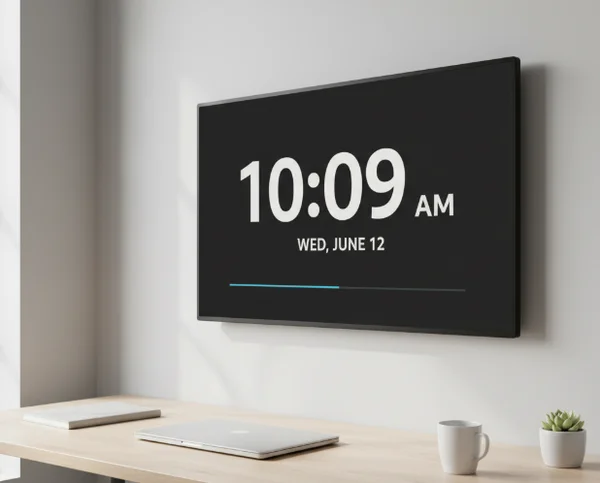
Build a baseline accuracy setup before going full screen
Verify system time source, timezone, and 12/24-hour format alignment
Always begin with the device clock, not the browser tab. If system time is wrong, the browser display will mirror that error. Check the operating system time source, automatic sync status, and selected timezone before opening a full-screen display.
NIST explains that its Internet Time Service is directly traceable to UTC(NIST) and supports DAYTIME, TIME, and NTP request methods (NIST Internet Time Service). That reference is useful for teams that need a trusted baseline when validating local machine time.
For operational checks, keep format alignment simple. If a location uses 24-hour notation in schedules, set the display to 24-hour mode. If users work from 12-hour meeting invites, keep 12-hour mode and ensure AM/PM visibility from a distance.
Then perform one cross-check against a second trusted device. The point is not permanent dual monitoring. It is a quick verification that catches timezone or daylight-saving errors before the screen becomes an office reference.
After this setup, open the full-screen time view and test visibility from each normal viewing position. A clock that is clear at one desk may be hard to read from a doorway or conference table.
Confirm visual readability across distance and ambient light
Accuracy is not only about seconds. It is also about whether people can read the time quickly and correctly in the actual room. Poor contrast, glare, or tiny digits create interpretation delays that feel like accuracy problems.
Section508 guidance reports minimum contrast targets of 4.5:1 for regular text and 3:1 for large text (Section508 contrast guidance). A large wall clock usually behaves like large text, but contrast still matters when sunlight or projector spill washes out the screen.
Use a short visual test:
- Check readability at the farthest viewing point.
- Check readability with room lights on and off.
- Check readability after switching to dark mode.
- Check readability on the selected theme color.
If readability drops in any condition, adjust theme and brightness before go-live. A one-time adjustment can prevent daily friction across an entire team.
For shared spaces, document one approved appearance profile in your runbook. That makes handoffs easier when screens are rebooted or reassigned.
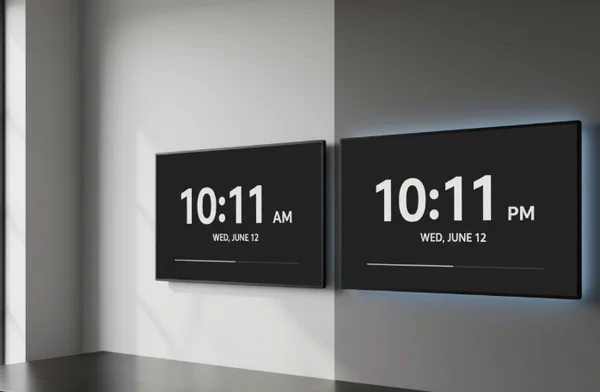
Run a daily and weekly reliability checklist
Daily five-point check for sync, tab state, and display clarity
Daily checks should be short and repeatable. A five-point pass takes about two minutes and prevents most surprises.
- Confirm the screen is on the approved clock page and not a stale tab.
- Compare displayed time with a trusted reference device.
- Verify timezone and 12/24-hour format match the day's schedule.
- Confirm contrast is still readable in current room lighting.
- Check that full-screen mode remains active if the room depends on distance visibility.
The Data.gov catalog entry for NIST Internet Time Service describes distributed UTC(NIST) accuracy on the order of 0.001 seconds (Data.gov NIST ITS entry). The same entry notes network conditions can affect delivery timing. This is why local environment checks still matter.
When these five checks pass, the display can be trusted as a shared reference for the day. If one check fails, fix it immediately and log the reason. Quick logs reveal recurring causes, such as auto-sleep policies or profile resets.
Weekly audit for restart recovery and fallback readiness
A weekly audit protects against silent drift in settings and startup behavior. The daily checklist catches today's errors. The weekly audit reduces repeat incidents next month.
Review these points once per week:
- Did the device restart and lose full-screen mode?
- Did browser updates change tab restore behavior?
- Did timezone settings change after travel or imaging?
- Did room lighting changes reduce readability?
- Is there a documented fallback device if the primary screen fails?
Keep one fallback path simple: a second browser-enabled device with the same approved settings. No complex failover stack is required for most teams. A prepared backup page and known launch steps are enough.
During the audit, reopen the theme and format controls and confirm that visual and format choices still match current team needs. This avoids gradual mismatch between schedule conventions and display behavior.
If multiple rooms use the same method, standardize the checklist wording. Shared language reduces interpretation gaps and speeds up troubleshooting across locations.
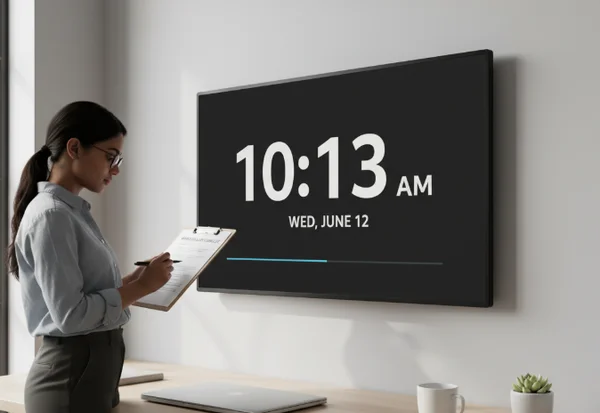
Key takeaways and a stable routine for long-running clock screens
Reliable time screens come from small operational habits. Start with source and timezone alignment, then verify readability for real room conditions. Add a short daily check and a weekly audit, and the display remains dependable without adding complexity.
The strongest routine is simple: baseline setup once, five-point check each day, recovery audit each week. This keeps a browser clock practical for classrooms, meeting rooms, and always-on workstations.
Treat the checklist as a maintenance tool, not a compliance burden. Two minutes of verification prevents most timing confusion and protects trust in the shared display. Over time, that consistency is what makes a real-time clock page useful in high-visibility environments.