Mastering Your Time Screen: Advanced Customization for Power Users
Most people use a clock just to check the time. But for power users, a clock is more than a utility. It is a part of their workspace aesthetic and a tool for better focus. Are you looking for a way to turn your display into a professional time management hub? If so, you have likely discovered that standard system clocks are too small and limited.
This guide will show you how to take your time display to the next level. We will explore advanced customization techniques using TimeScreen.org. Whether you are a student, a professional streamer, or a corporate presenter, these secrets will help you master your environment. By the time you finish reading, you'll have the skills to craft a time display that's perfectly tailored to your needs and aesthetic preferences.
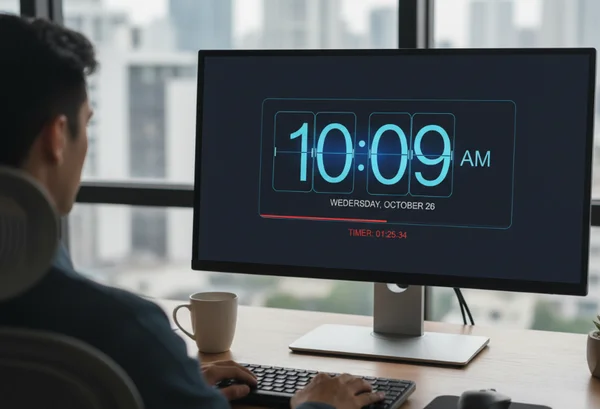
Unlocking Time Screen Customization: Power User Secrets
To truly maximize your experience, you must look beyond the default settings. Many users simply open the page and leave it as it is. However, the real power lies in the "Settings" menu. This tool is designed to be a free online clock that adapts to you, not the other way around.
The core philosophy here is "Screen as a Clock." Instead of a tiny icon in the corner of your taskbar, your entire monitor becomes a dedicated timepiece. This shift in perspective helps reduce digital distractions. When you are in "Clock Mode," you are less likely to click on social media tabs or check emails impulsively.
Mastering Theme Combinations for Maximum Visual Impact
One of the most exciting features of this tool is the variety of themes. You aren't stuck with a boring digital font. You can choose from several distinct styles:
- The Flip Clock: This offers a classic, retro look. It is perfect for users who love "old school" aesthetics.
- The LED Clock: This provides a high-tech, digital vibe that works great in gaming setups.
- The Manga Theme: A unique, artistic style for those who want their screen to stand out.
- The Analog Mode: For a traditional feel that reminds you of a physical wall clock.
To get the most visual impact, consider your room's lighting. If you have a bright workspace, a light theme with high contrast works best. If you work in a "dark mode" environment, choose a theme that features soft colors to protect your eyes. Remember, once you find a combination you love, you must click the Save Changes button. This ensures your browser remembers your choice for your next session.
Advanced Display Settings for Different Environments
Customization isn't just about looks; it is about functionality. In the advanced settings, you can toggle specific elements on or off. For example, some people find the "Seconds" display distracting. If the ticking numbers make you feel anxious, you can hide them. This creates a much calmer environment for deep work.
You can also choose between 12-hour and 24-hour formats. Professional environments, such as aviation or medical fields, often require the 24-hour format. Meanwhile, creative workers might prefer the 12-hour format for a casual feel. You can also hide the date if you want the most minimalist look possible. These advanced clock customization options allow you to strip away everything except what you truly need.
Optimizing Your Time Screen for Specific Use Cases
Every user has a different goal. A student studying for an exam has different needs than a manager leading a global board meeting. By understanding these specific use cases, you can set up your time screen to serve you better.
Efficiency comes from reducing the "friction" in your workflow. If you have to squint to see the time, or if the clock is buried under other windows, it isn't helping you. The goal is to make time visible, clear, and beautiful.
Creating the Perfect Presentation Setup
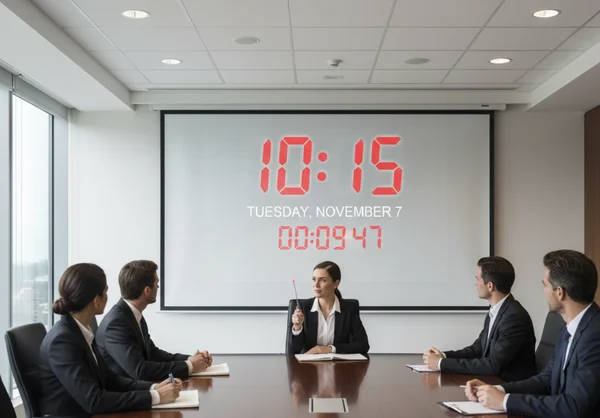
If you are a meeting facilitator or a teacher, you know that keeping a schedule is difficult. When you share your screen, a tiny clock in the corner of your laptop is impossible for your audience to see. Instead, you can use a dedicated tab with a full screen clock.
For presentations, we recommend the following setup:
- Select a High-Contrast Theme: Use a bold font like the LED or Digital style.
- Enable Fullscreen Mode: Use the shortcut button at the bottom of the screen to remove the browser address bar.
- Hide the Seconds: This keeps the audience focused on the minutes and prevents the "ticking clock" stress.
- Show the Date: This helps keep everyone grounded during long workshops or multi-day events.
This professional clock setup makes you look more organized and helps your participants track the remaining time for breaks or exercises.
Building Your Ultimate Focus Environment
Students and deep-work enthusiasts often struggle with the "phone trap." You check your phone to see the time, and ten minutes later, you are scrolling through social media. The solution is to put your phone away and use your computer screen as a dedicated timer.
To build a focus-friendly environment, try using the "Dark Mode" feature. It reduces the blue light emitted by your monitor, which can help prevent eye strain during long study sessions. Many users find that the "Flip Clock" theme has a soothing rhythm that aids concentration. By having a large, clear time screen display on a second monitor, you create a visual boundary for your work session. It tells your brain, "As long as this clock is visible, I am in work mode."
Power User Workflows and Time Screen Efficiency
True power users look for ways to automate and simplify their lives. They don't want to re-configure their tools every morning. They want their tools to be ready as soon as they sit down.
Because this tool values your privacy, it does not require an account. It doesn't store your data on a remote server. Instead, it uses your browser’s local storage. This is a major benefit for privacy-conscious users who want to customize their clock without being tracked.
Saving and Syncing Custom Configurations Across Devices
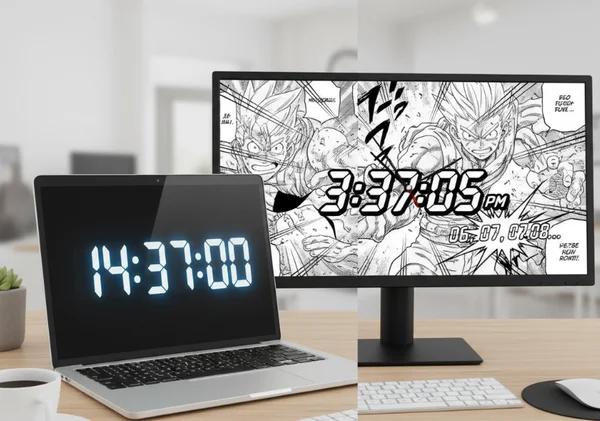
Since your settings are stored locally in the browser, your configuration will stay active on that specific device. If you use a laptop for work and a desktop for gaming, you can have two completely different "Time Screen" identities.
For example, your work laptop can be set to a 24-hour LED clock with the date visible. Your home gaming PC can be set to a Manga theme with seconds enabled for precise timing. To "sync" them manually, simply spend thirty seconds on each device to match the settings once. Just remember: always click Save Changes. If you close the window without saving, the browser will revert to the default settings next time.
Creating Custom Presets for Different Scenarios
While the tool is simple, you can use browser bookmarks to your advantage. If you use different browser profiles (like Chrome "Work" and Chrome "Personal"), you can have different hidden features active in each profile.
This is useful for people who switch between "Meeting Mode" and "Deep Work Mode." In your meeting profile, save the clock with a professional, bold theme. In your personal profile, use something more aesthetic and creative. This allows you to change your entire environment with just a few clicks. It is the ultimate TimeScreen power user guide secret for people who multitask throughout the day.
Elevating Your Workspace Productivity
Elevating your time management doesn't require complex software or expensive gadgets. Often, the best solution is the simplest one. By using TimeScreen, you can turn any device into a stylish, accurate, and functional clock.
We have explored how to master different themes, how to optimize your display for presentations, and how to create a focus-driven environment using dark mode. I’ve personally found that setting the Flip Clock on a dedicated tablet next to my monitor helps me stay off my phone during intensive writing sessions. What makes TimeScreen special is how it adapts to your needs, not the other way around. It is private, it is free, and it is highly customizable.
Don't settle for a boring desktop clock. Take control of your visual environment and make time work for you. Head over to the homepage today to try our free tool and see how a dedicated time screen can transform your productivity.
Frequently Asked Questions
How do I save my custom TimeScreen settings permanently?
To save your settings, click on the "Settings" icon at the bottom of the screen. After you have adjusted your theme, time format, and date preferences, you must click the Save Changes button. This stores your preferences in your browser's local storage. This means the next time you visit the site, your custom setup will load automatically.
Can I create different TimeScreen configurations for different occasions?
Yes! While the tool saves one primary configuration per browser, you can use different browsers (like Firefox and Chrome) or different browser profiles to maintain different looks. For example, you might use a minimalist "Flip Clock" in your study profile and a bright "LED Clock" in your streaming profile. This is a great way to maximize your time screen for various tasks.
What are the most advanced customization options in TimeScreen?
The most advanced options include the ability to toggle seconds, switch between 12/24-hour modes, and choose from unique themes like "Manga" or "Flip." You can also enter full-screen mode to hide all browser clutter. This creates a dedicated, professional-grade realtime clock that is perfect for both personal and business use.
How do I maximize the visual impact of my customized TimeScreen?
For the best visual impact, match your clock theme to your room's lighting and your desktop wallpaper. If you are using a second monitor, use the "Full Screen" button to remove the browser tabs. This makes the clock look like a piece of digital art rather than just a website. You can find many different styles on the site to suit any mood.
Are there any hidden features in TimeScreen that aren't visible in the basic interface?
The "hidden" power of the tool lies in its privacy-first design. Unlike other online tools, it does not collect your data or track your location. Every setting is stored locally on your machine. This makes it one of the safest and fastest tools for creating a personalized online time screen for your home or office.